
YouTube Live Setup Guide
This guide walks you through creating a live event on your own YouTube channel and handing us the stream key, which is all we need to send your event's video into your channel. You never have to share your account password.
Before You Start
- You don't need to share your password. To keep your account secure, we recommend sending us only the stream key. That alone is enough for us to push video into your channel.
- Have one person and a computer on hand during the event. That way your team decides when the stream goes live and when it ends, and can watch the viewer numbers throughout.
- If you can't spare the person or the computer on the day, we can log in and handle it for you instead.
- You set up the channel side; on site we handle the multi-camera shoot, the switching and the stream itself. See live streaming services.
Creating the Live Event
Go to YouTube
Sign in with the channel you'll be streaming from at youtube.com. If your Google account has more than one channel, check the avatar in the top right is the right one first.
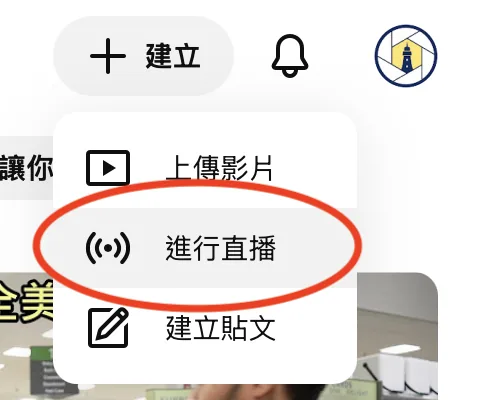
Click Create, then Go live
Both are in the top-right corner. For a channel going live for the first time, YouTube may require verification and a 24-hour wait before the feature is enabled, so check a few days ahead.
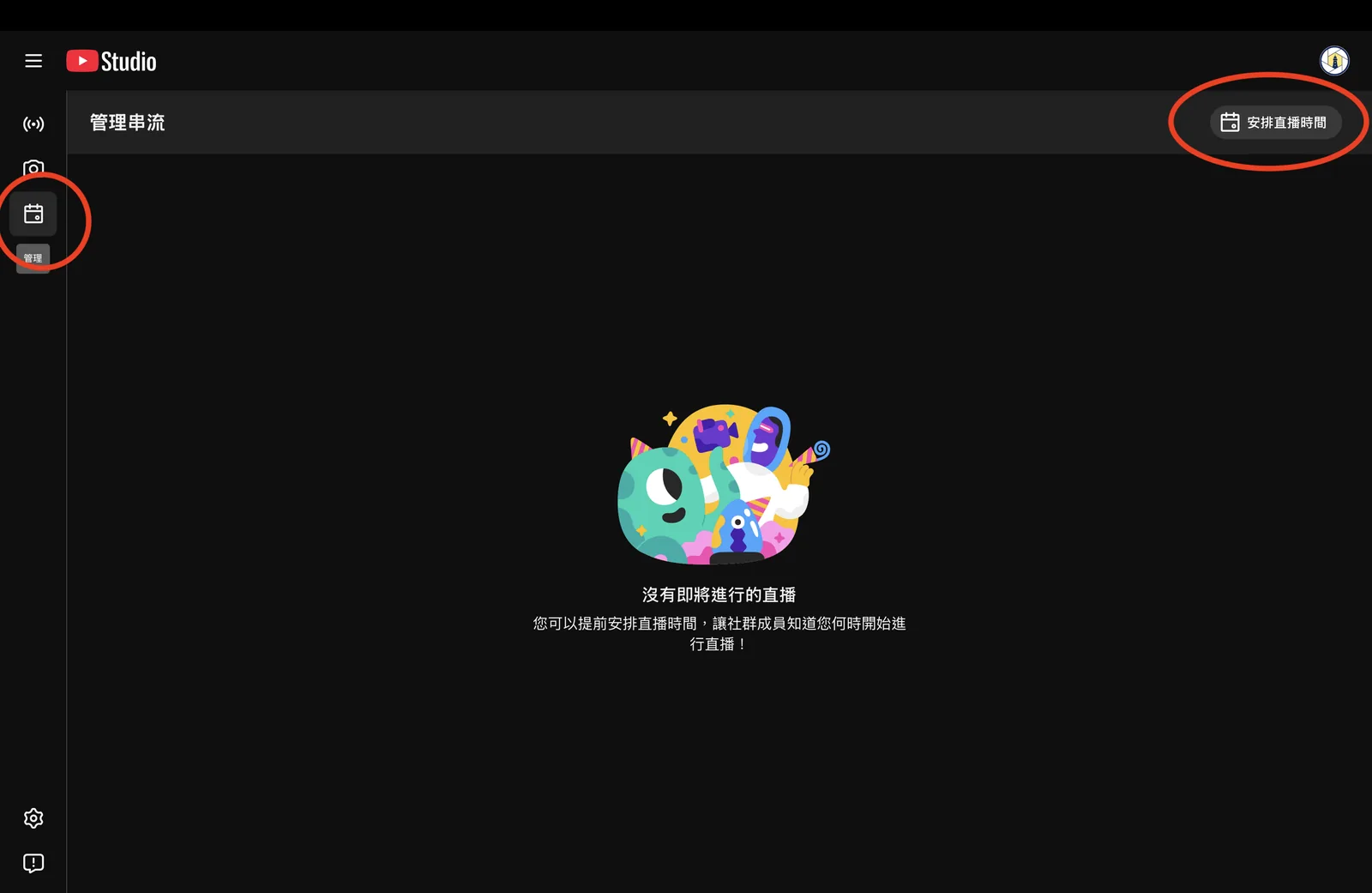
Manage on the left, then Schedule stream
Once you're in the YouTube Studio live control room, switch to Manage in the left sidebar, then click Schedule stream in the top right.
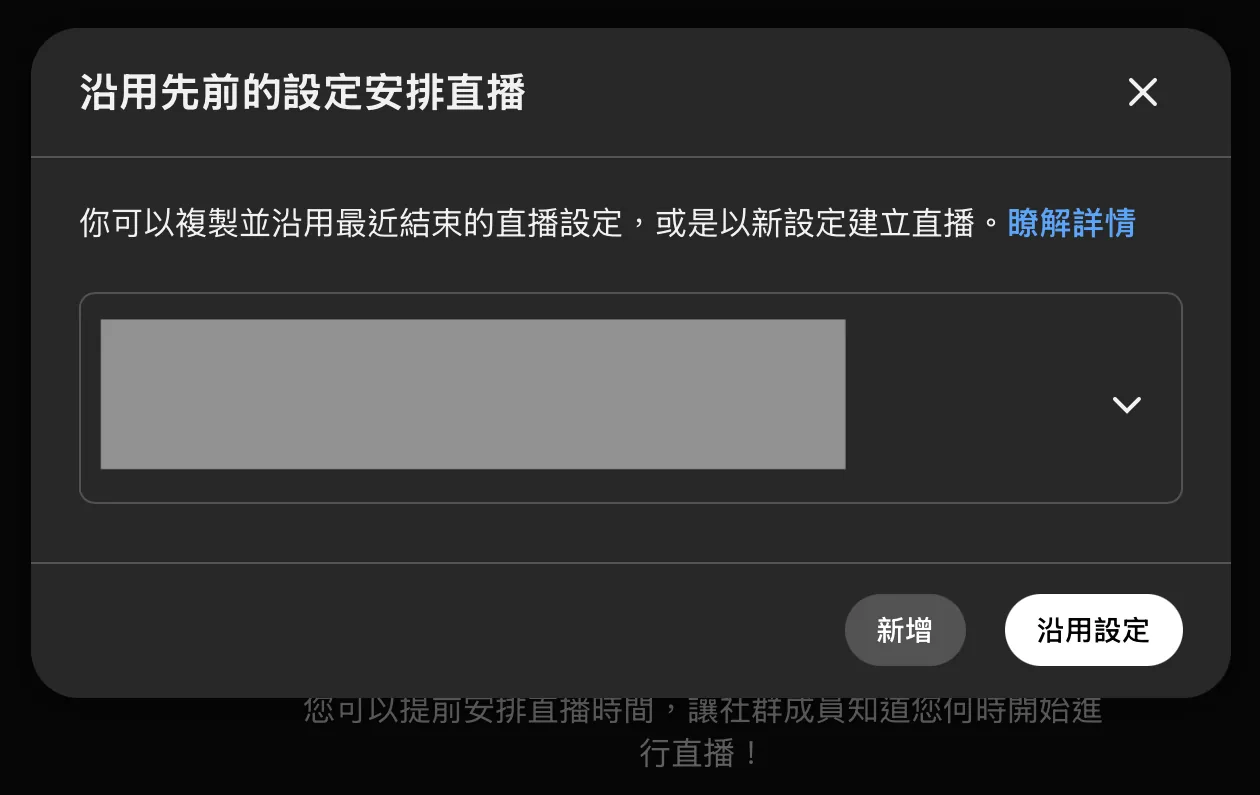
If you see this dialog, choose New
This is YouTube asking whether to reuse the settings from your last stream. Choose New if this is your first time or you'd rather start fresh.
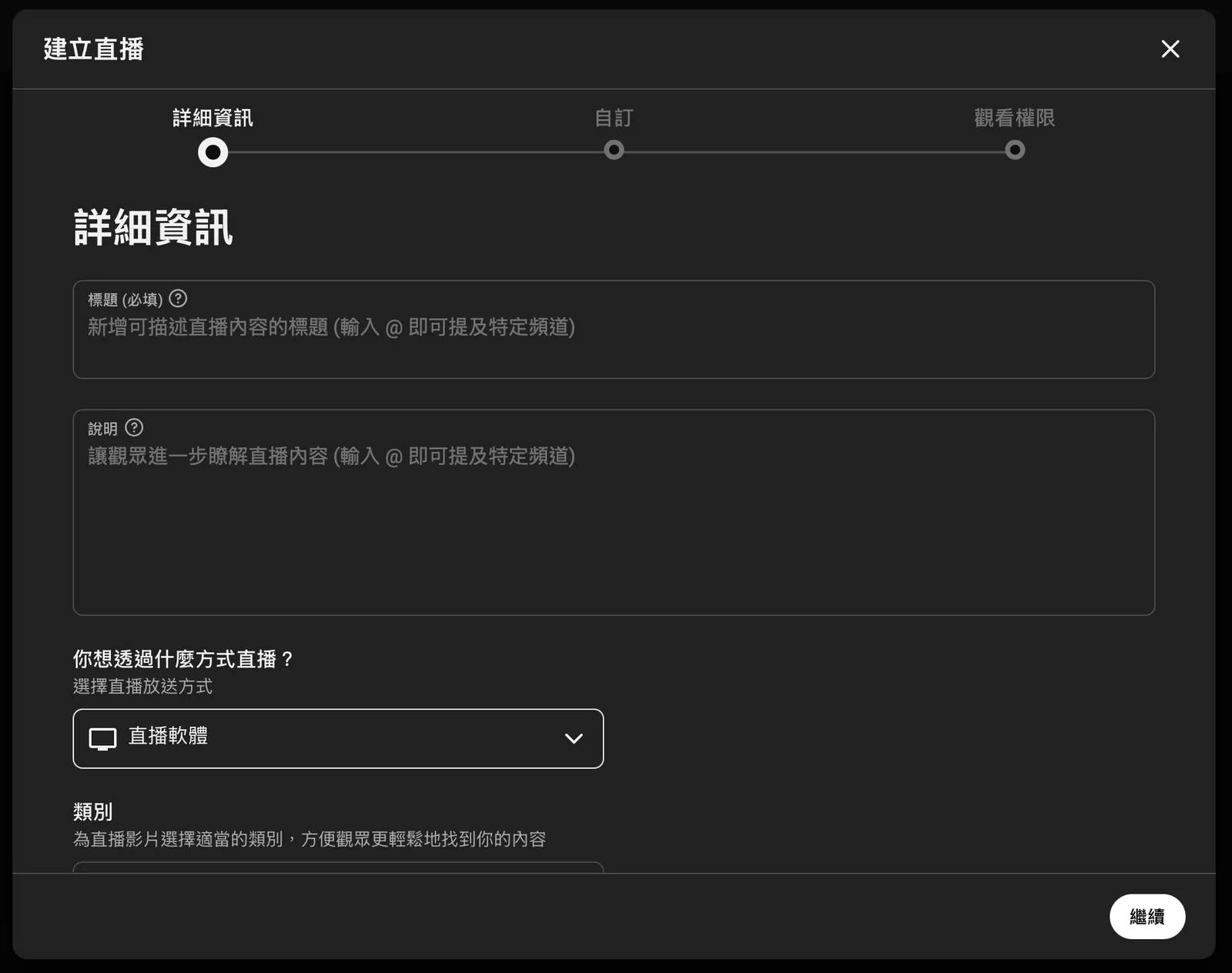
Fill in the details and choose Streaming software
Fill in the title, description and category to match your event. Under "How do you want to stream?" you must select Streaming software — any other option won't generate the stream key we need.
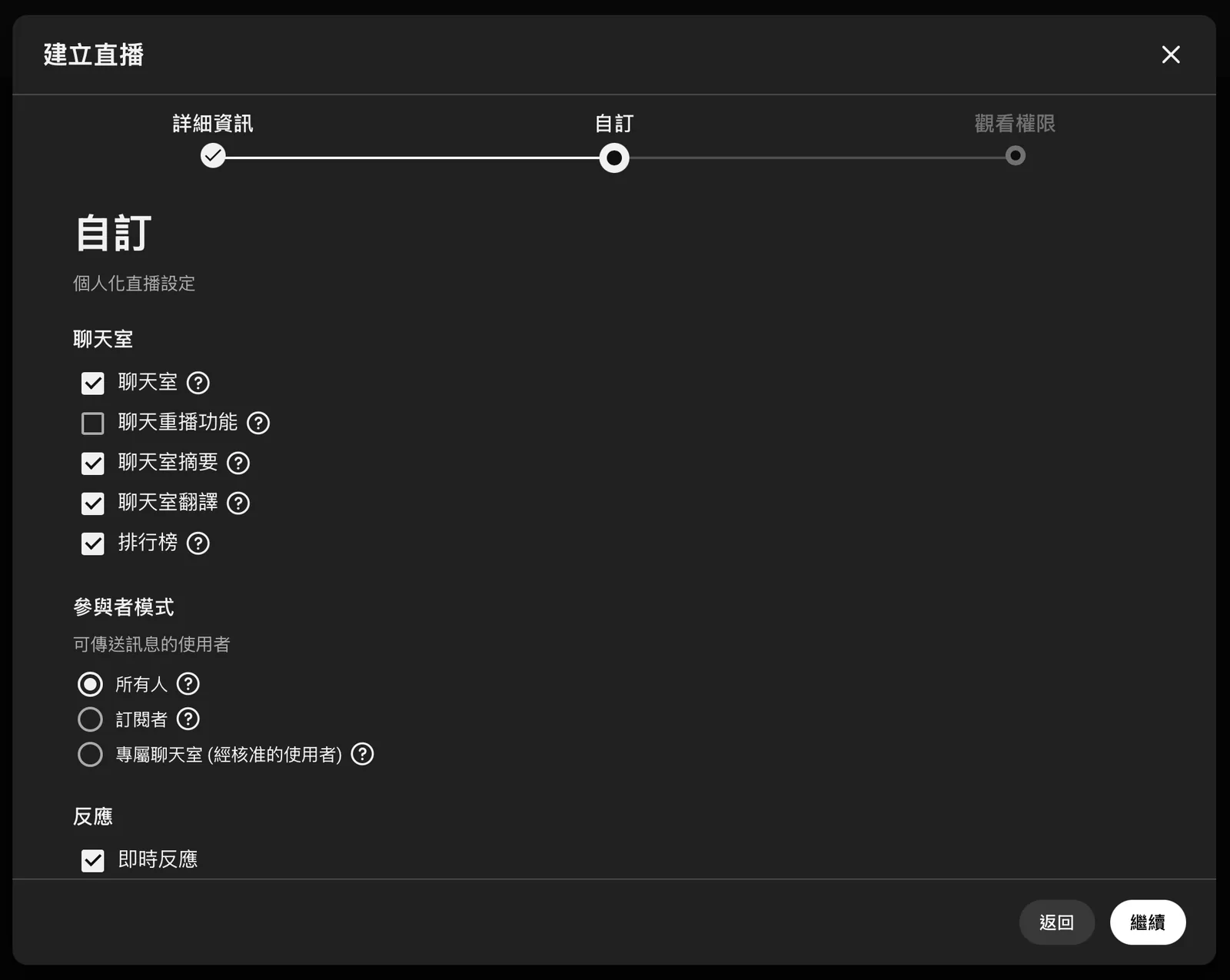
Leave the Customization page as it is
Chat, participant mode and live reactions can all stay as they are — just hit Continue. For a formal event where you'd rather not have comments running alongside, this is where you'd untick Live chat.
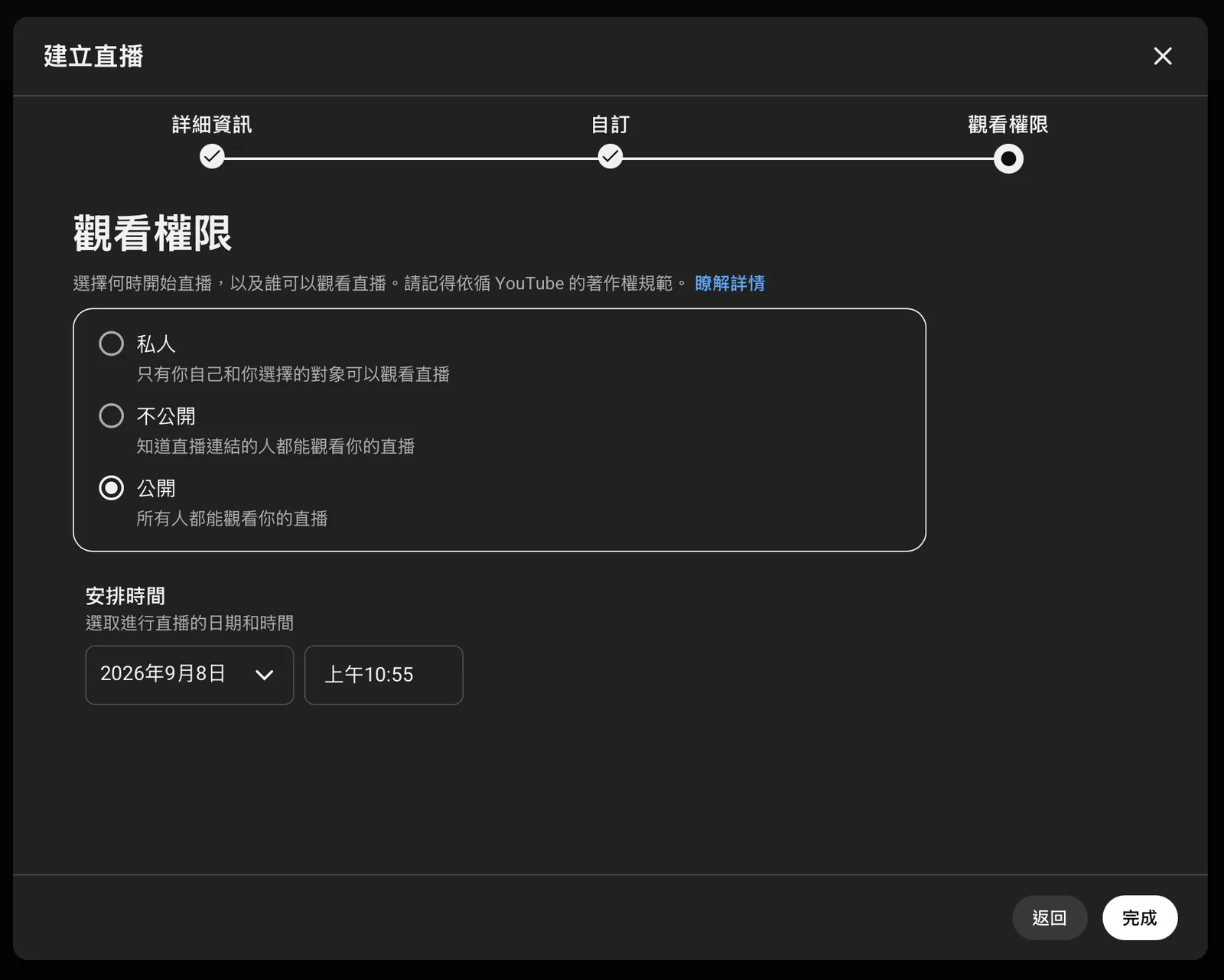
Set visibility and schedule
Choose visibility to suit the event: Public means anyone can watch, Unlisted means only people with the link can watch, and Private means only the people you name can watch.
For the schedule, just pick the event's start time — going live and ending the stream stays under on-site control, so nothing broadcasts automatically when the clock hits that time.
Check these key settings
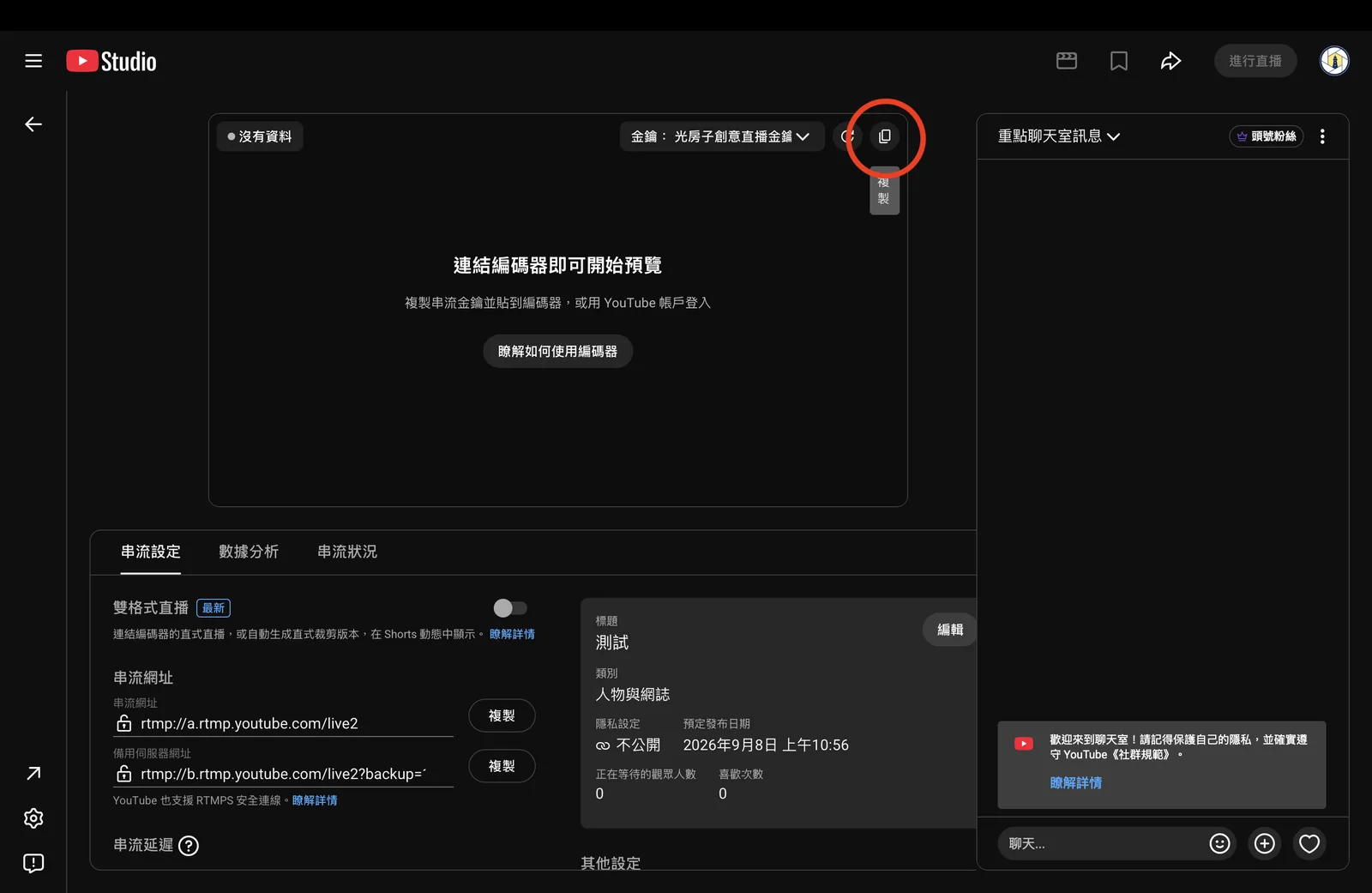
After you press Done you'll land on the stream settings page. Check these in particular:
What the three latency settings actually mean: normal latency runs about 15 to 20 seconds behind, low latency about 5 to 8 seconds, and ultra-low latency under 3 seconds. Everything else can stay at its default.
Copy the stream key and send it to us
Above the player on the right, click the copy button next to the key, then send us the string it copies. The key is the permission to broadcast to your channel, so send it by private message or email — never post it publicly.
Stuck Anywhere in the Process?
Get in touch, or send us a screenshot of where you are and we'll check it for you. To check whether the venue's internet can carry a stream, start with the Live Stream Bandwidth Guide.